Testing your website for accessibility ensures everyone can use it, including people with disabilities. This guide covers free tools, manual testing methods, and step-by-step processes to check if your site meets accessibility standards.
Quick Accessibility Checks (5 Minutes)
Before running detailed tests, try these quick checks:
The Keyboard Test
Put your mouse away and try navigating your site using only the keyboard:
- Tab – Move forward through links and form fields
- Shift + Tab – Move backward
- Enter – Activate links and buttons
- Arrow keys – Navigate within menus and form controls
- Escape – Close modals and popups
Ask yourself:
- Can you see where you are on the page? (focus indicator)
- Can you reach all interactive elements?
- Does the tab order make logical sense?
- Can you operate dropdown menus and forms?
- Can you skip to main content?
The Zoom Test
Zoom your browser to 200% (Ctrl/Cmd + Plus) and check:
- Is all text still readable?
- Does content reflow without horizontal scrolling?
- Are buttons and links still usable?
- Does any content get cut off or overlap?
The Squint Test
Squint at your page or step back from your screen. Can you still distinguish the main headings, navigation, and content areas? If not, your visual hierarchy may need work.
Understanding WCAG Standards
The Web Content Accessibility Guidelines (WCAG) from the W3C are the international standard for web accessibility. They’re organised around four principles – content must be:
- Perceivable – Users can see or hear content
- Operable – Users can navigate and interact
- Understandable – Content is clear and predictable
- Robust – Works with assistive technologies
Conformance Levels
WCAG has three conformance levels:
- Level A – Minimum accessibility (25 criteria)
- Level AA – Acceptable accessibility (13 additional criteria) – Most organisations target this level
- Level AAA – Optimal accessibility (23 additional criteria)
Most legal requirements and best practices recommend WCAG 2.1 Level AA compliance. WCAG 2.2, released in 2023, adds 9 new success criteria focused on cognitive disabilities and mobile accessibility.
Free Automated Testing Tools
Automated tools can catch 30-40% of accessibility issues instantly. Use multiple tools for better coverage.
WAVE (Web Accessibility Evaluation Tool)
WAVE is one of the most popular free accessibility testing tools, available as a browser extension for Chrome, Firefox, and Edge.
How to use WAVE:
- Install the WAVE extension from your browser’s extension store
- Navigate to the page you want to test
- Click the WAVE icon in your browser toolbar
- Review the icons overlaid on your page
WAVE displays icons directly on your page showing:
- Red icons – Errors that must be fixed
- Yellow icons – Alerts that need review
- Green icons – Accessibility features present
- Blue icons – Structural elements
WAVE also includes a contrast checker and document outline view to check heading structure.
Google Lighthouse
Lighthouse is built into Chrome DevTools and tests accessibility alongside performance, SEO, and best practices.
How to run a Lighthouse audit:
- Right-click on your page and select Inspect
- Go to the Lighthouse tab
- Select Accessibility under Categories
- Click Analyze page load
Lighthouse gives you a score out of 100 and lists specific issues with links to documentation on how to fix them.
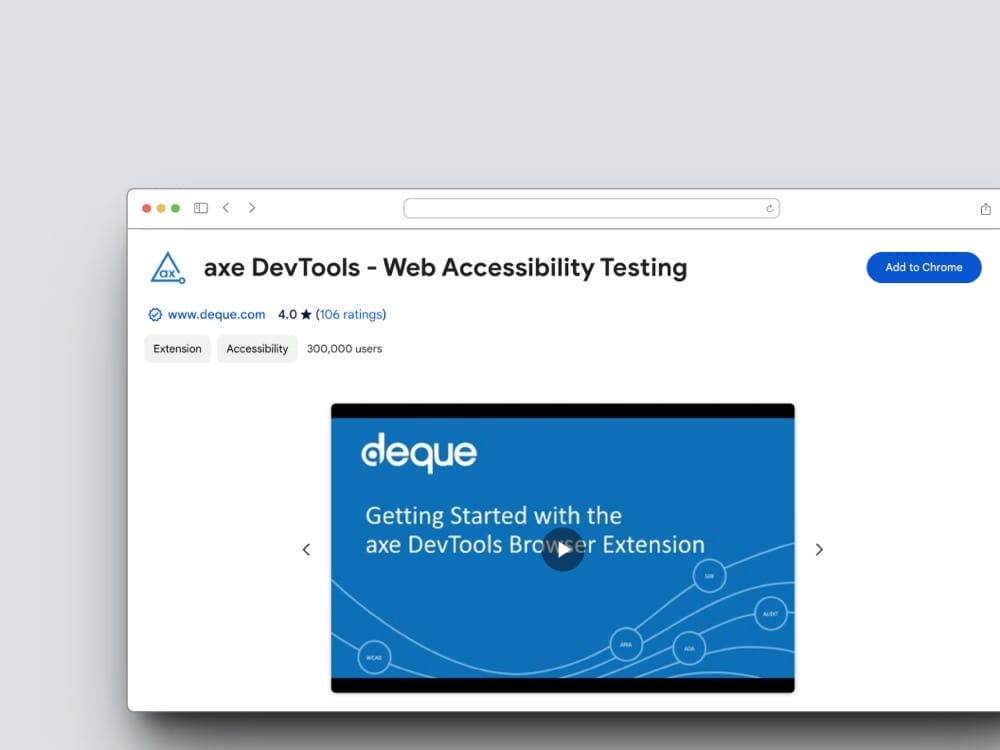
axe DevTools
axe DevTools is a browser extension that integrates with Chrome DevTools for detailed accessibility testing.
How to use axe:
- Install the axe DevTools extension
- Open DevTools (F12 or right-click → Inspect)
- Find the axe DevTools tab
- Click Scan ALL of my page
axe provides detailed issue descriptions, affected elements, and guidance on fixes. It categorises issues by severity: critical, serious, moderate, and minor.
Color Contrast Analyzer
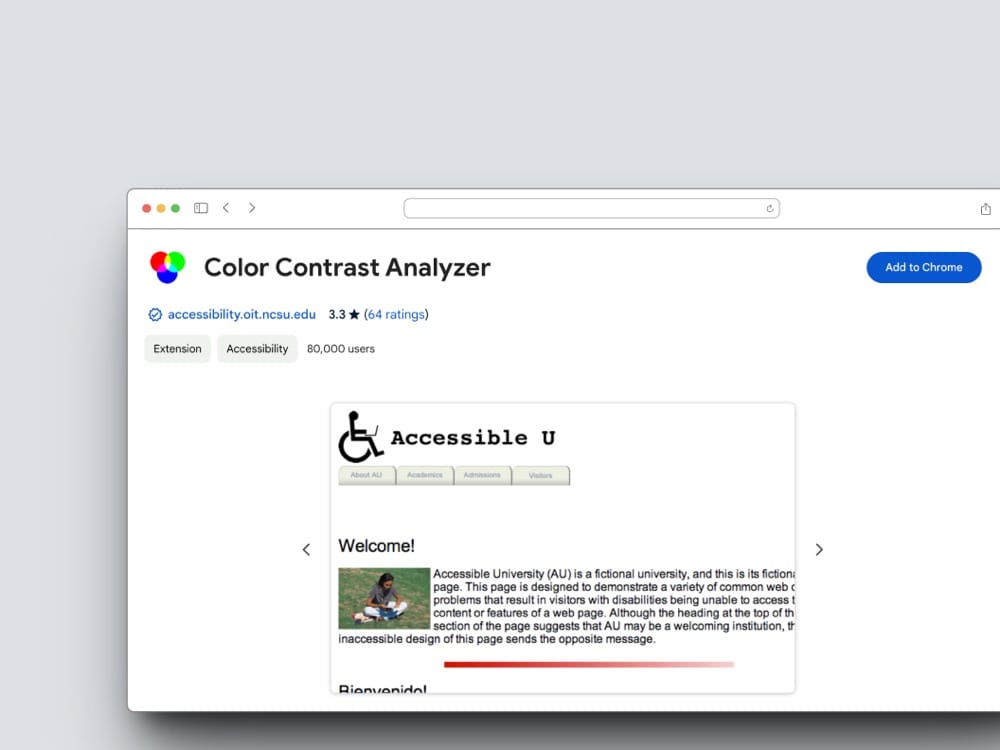
The Color Contrast Analyzer checks if your text colours meet WCAG requirements.
WCAG contrast requirements:
- Level AA – 4.5:1 for normal text, 3:1 for large text (18pt+ or 14pt bold)
- Level AAA – 7:1 for normal text, 4.5:1 for large text
Use the eyedropper tool to sample your foreground (text) and background colours. The tool instantly shows if you pass or fail WCAG requirements.
IBM Equal Access Checker
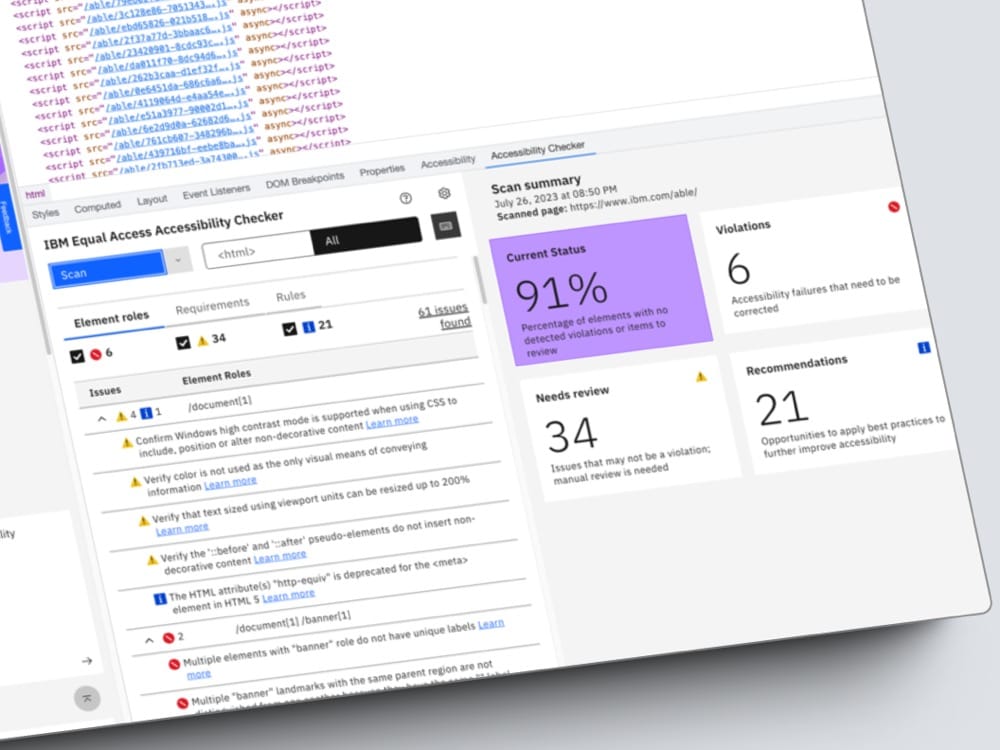
IBM’s accessibility checker is available as a browser extension and includes both automated and guided manual testing.
It provides a checklist approach to ensure you test all aspects of accessibility, from visual checks to keyboard navigation to screen reader compatibility.
Manual Testing Methods
Automated tools miss many issues. Manual testing is essential for thorough accessibility evaluation.
Screen Reader Testing
Screen readers convert page content to speech. Test with at least one screen reader:
- NVDA (Windows, free) – Most popular free screen reader
- VoiceOver (macOS/iOS, built-in) – Activate with Cmd+F5 on Mac
- JAWS (Windows, paid) – Industry standard for enterprise
- TalkBack (Android, built-in) – For mobile testing
- Narrator (Windows, built-in) – Good for basic testing
What to check:
- Does the page have a meaningful title?
- Are headings announced correctly?
- Do images have descriptive alt text?
- Are form fields labelled clearly?
- Do links make sense out of context?
- Are error messages announced?
Focus Indicator Testing
The focus indicator shows keyboard users where they are on the page. Tab through your site and check:
- Is there always a visible focus indicator?
- Does it have sufficient contrast?
- Does it move in a logical order?
- Does focus ever get trapped?
Form Testing
Forms are often the most problematic areas. Check:
- Every input has a visible label
- Labels are programmatically associated (using
forattribute) - Required fields are clearly marked
- Error messages are specific and helpful
- Errors are announced by screen readers
- Forms can be completed using only keyboard
Content Structure Testing
Check your page structure:
- Headings – One H1, logical hierarchy (don’t skip levels)
- Landmarks – Navigation, main content, footer identified
- Lists – Proper markup for ordered/unordered lists
- Tables – Headers marked up correctly
- Language – Page language declared, changes marked
Testing Media Accessibility
Images
Check every image:
- Informative images need descriptive alt text
- Decorative images should have empty alt (
alt="") - Complex images (charts, graphs) need long descriptions
- Images of text – Avoid unless essential (logos are acceptable)
Videos
Videos require:
- Captions – Synchronised text for dialogue and sounds
- Transcripts – Full text version of content
- Audio description – Narration of visual information (for blind users)
- Keyboard controls – Play, pause, volume accessible without mouse
Audio
Audio content needs:
- Transcripts – Written version of all spoken content
- No autoplay – Audio shouldn’t start automatically
- Volume control – Users can adjust or mute
Mobile Accessibility Testing
Test your site on actual mobile devices, not just responsive views:
- Touch targets – At least 44×44 pixels (WCAG 2.2 requires 24×24 minimum)
- Spacing – Adequate space between interactive elements
- Orientation – Works in portrait and landscape
- Pinch-to-zoom – Not disabled
- Screen reader – Test with VoiceOver (iOS) or TalkBack (Android)
Common Accessibility Issues to Fix
Critical Issues
- Missing alt text – Add descriptive text to all meaningful images
- No form labels – Associate labels with all form fields
- Empty links/buttons – Add text content or aria-label
- Missing page title – Every page needs a unique, descriptive title
- No language attribute – Declare page language in HTML
Serious Issues
- Low colour contrast – Ensure text meets 4.5:1 ratio
- Missing skip link – Add “Skip to main content” link
- Keyboard traps – Ensure users can escape all components
- No focus visible – Never remove focus outlines without replacement
- Broken heading hierarchy – Don’t skip heading levels
Moderate Issues
- Redundant links – Avoid multiple identical links to same destination
- Missing landmarks – Use semantic HTML or ARIA landmarks
- Tables without headers – Mark up data table headers properly
- Autoplaying media – Provide pause controls or disable autoplay
Legal Requirements
Web accessibility is required by law in many jurisdictions:
United Kingdom
- Equality Act 2010 – Requires reasonable adjustments for disabled people
- Public Sector Bodies Accessibility Regulations 2018 – WCAG 2.1 AA required for public sector websites
European Union
- European Accessibility Act – Coming into full effect 2025, covers private sector
- Web Accessibility Directive – WCAG 2.1 AA for public sector
United States
- ADA (Americans with Disabilities Act) – Applies to places of public accommodation
- Section 508 – WCAG 2.0 AA required for federal agencies
Testing Process Checklist
Follow this process for thorough accessibility testing:
- Run automated tools – WAVE, Lighthouse, and axe on key pages
- Keyboard test – Navigate entire site without mouse
- Screen reader test – Use NVDA or VoiceOver on main user journeys
- Zoom test – Check at 200% and 400% zoom
- Colour test – Check contrast and colour-only information
- Form test – Complete all forms using keyboard and screen reader
- Mobile test – Test on actual devices with touch and screen readers
- Document issues – Record problems with screenshots and steps to reproduce
- Prioritise fixes – Critical issues first, then serious, then moderate
- Retest – Verify fixes and check for regressions
Additional Resources
- W3C Easy Checks – First steps in accessibility evaluation
- WebAIM – Articles, tools, and training resources
- A11Y Project – Community-driven accessibility resource
- NVDA Screen Reader – Free Windows screen reader
- Accessibility Developer Guide – Practical implementation guidance
FAQ
How often should I test for accessibility?
Test whenever you make significant changes to your site. Include accessibility checks in your development workflow and run full audits quarterly.
Can automated tools find all issues?
No. Automated tools catch approximately 30-40% of accessibility issues. Manual testing with keyboards and screen readers is essential for comprehensive coverage.
What level of WCAG should I target?
Most organisations should target WCAG 2.1 Level AA. This meets most legal requirements and covers the majority of user needs. Level AAA is aspirational and often not fully achievable.
Do I need to test with real users?
Testing with people who have disabilities provides invaluable insights that tools and simulations cannot replicate. If possible, include users with various disabilities in your testing process.
Author